Color-Coding Timeline Activities
In the Timeline display mode, marketing activities are represented by horizontal bars. To make it easier to identify activities at a glance, you can color-code the activity bars based on which option of a specified attribute is set on each activity.
Color-Code Timeline Activity Bars by Attribute Value
In the Timeline display mode, you can color-code the activity bars according to their attribute values for any Drop-Down List attribute.
Note
To enable an attribute for color-coding, an administrator must first set up color-coding for that attribute by assigning colors to the attribute's values. For instructions, see Configuring Activity Color-Coding on the Timeline.
When an attribute has been set up for color-coding, it appears as an option in the Select Color Coding menu in the Timeline. After you select an attribute from the Select Color Coding menu, each activity bar is displayed in a predetermined color based on the attribute option set on that activity.
Example
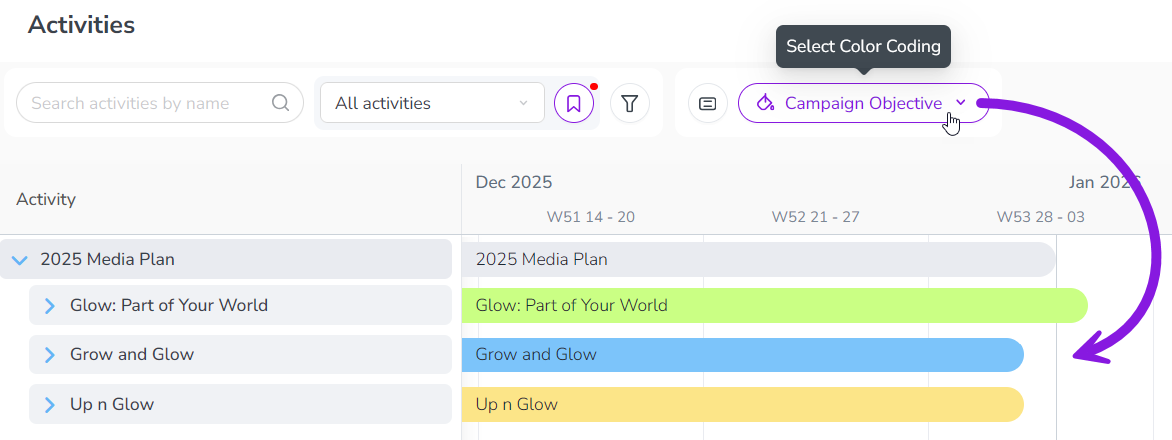
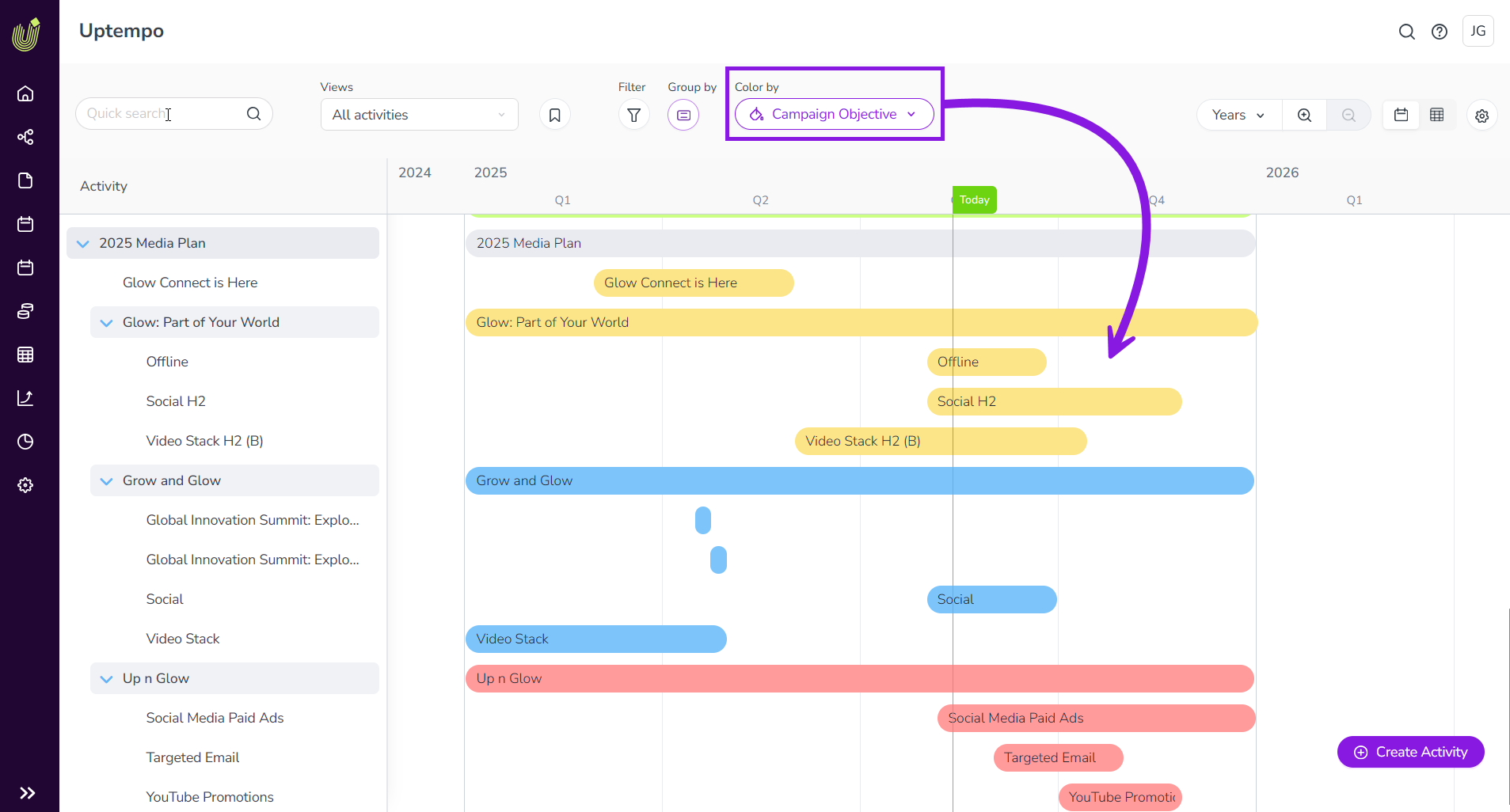
In this example, the Campaign Objective attribute has color-coding enabled, with the following colors assigned to each attribute value:
-
Sales Enablement: Green
-
Reputation: Blue
-
Demand Creation: Yellow
After you select the attribute Campaign Objective in the Select Color Coding menu, the activity bars for activities with this attribute are displayed in the specified colors according to the attribute value that's assigned to them:
-
The activity bar for the activity "Glow: Part of Your World" is displayed in green, because its Campaign Objective attribute is set to Sales Enablement.
-
The activity bar for the activity "Grow and Glow" is displayed in blue, because its Campaign Objective attribute is set to Reputation.
-
The activity bar for the activity "Up 'n Glow" is displayed in yellow, because its Campaign Objective attribute is set to Demand Creation.
-
The activity bar for the parent activity "2025 Media Plan" is displayed in grey, because it either does not have the Campaign Objective attribute, or does not have a value for that attribute.
Color-code activity bars by attribute value
You can use the Select Color Coding menu at any time to apply attribute-based color-coding to the activity bars on the Timeline.
To color-code the activity bars on the Timeline by attribute, follow these steps:
-
In Uptempo, navigate to the Activities section and make sure the Timeline display mode is selected (click
 Timeline).
 -
In the table controls, click
 Select Color Coding.
The Color by menu panel opens.
-
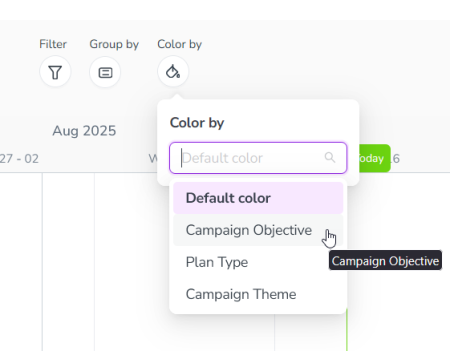
Open the Color by menu to view available attributes for color-coding. Select the attribute you want to use to color-code the activity bars:
Note
To appear in the list, an attribute must be:
-
A single-selection attributes (dropdown menu)
-
Configured for color-coding by your Uptempo administrator
-
Present on activities currently visible on the Timeline
-
-
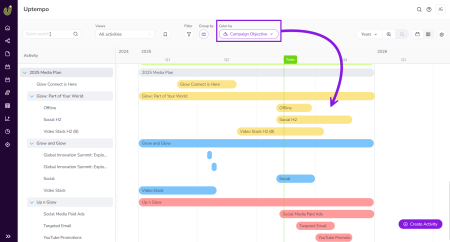
After you select an attribute in the Select Color Coding menu, the activity bars in the Timeline change color based on the attribute option set on them for the selected attribute:
Note
The bars for activities that do not have the selected attribute, or do not have a value for that attribute, are displayed in grey.
-
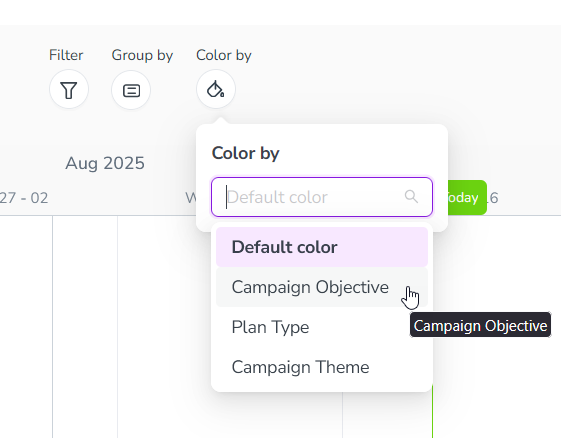
To remove the attribute-based color-coding again, select the Default color option from the Color by menu.
Tip
When you save your table settings as a view, your current Color by setting is also saved in the view (alongside your Filter and Group by settings), and will be restored whenever you select the view again.